- Over 450,000 clients!
- Nationwide delivery from €4.99 (max €6.99)
Payment options
Follow us on social media


We're award-winning!

This site is protected by reCAPTCHA and the Google
Privacy Policy and
Terms of Service apply.
Print stickers and labels
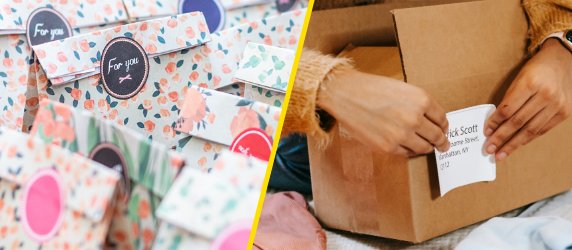
Whether you want to stick an expiration date on a jam jar, give your packaging a finishing touch, label a ring binder, or even personalise a gift, there are countless ways to get creative with homemade stickers. Printing labels at home with an inkjet printer isn’t too difficult; we’ve broken it down into three simple steps below!
What you’ll need to print labels
If you have a printer at home, you’re almost ready to get started. Most inkjet printers can print stickers, while our label product descriptions clearly state whether they’re suitable for laser printers. You’ll also need editing software, such as Microsoft Word or Adobe InDesign, as well as sticker sheets or printable labels.Print labels step-by-step
With the help of the steps below, you’ll be printing labels at home in no time!Step 1: Choose the size and type of sticker
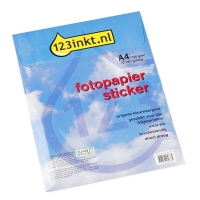
There are numerous labels that you can print with an inkjet printer. Think about what you’ll be using the stickers for and choose a suitable sticker paper.- Do you want labels in all shapes and sizes? Glossy sticker sheets are ideal. You can simply cut them to the size and shape you need.
- Want to add an expiry date to food stored in the freezer? Freezer labels are designed to withstand freezing temperatures.
- Looking for round labels? Promotional stickers are a great choice. They’re perfect for personalising gifts, corporate gifts, or packaging.
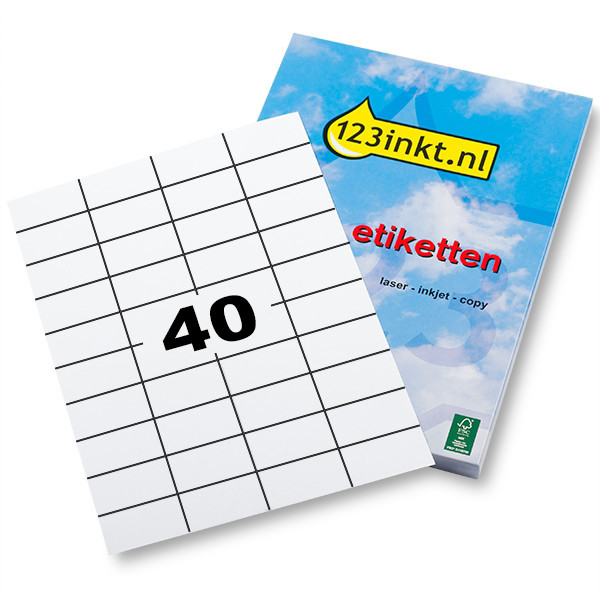
- For everyday uses, printable universal labels are a versatile option. They’re rectangular and available in a range of handy sizes.
- Want to add a splash of colour to your products or parcels? Coloured adhesive labels are a great choice. Our colour stickers are available in a range of colours, including red, yellow, blue, and green.
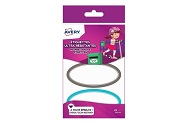
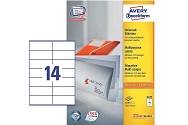
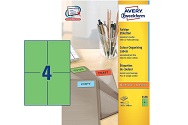
Please note: Always choose printable labels, not writable ones. Also ensure that your inkjet printer supports the size of the sticker sheets. You can find this information in your printer’s manual and then easily adjust the print settings.
Do you use Adobe InDesign? You can also find hundreds of free label templates on the Adobe website.
A blank document with dotted lines will open. These lines show the outlines of the stickers. You can then type your chosen text or add an image to each label.
Step 2: Designing the stickers
Now that you’ve found the right labels, you need to decide what you would like to print on them. You could add text, such as a name, product, ingredient, or dish, or even include an image. To help you get started, we’ve shared two easy ways to design your own stickers below.Existing templates for labels
Microsoft Office offers (free) customisable sticker templates. For each design, you’ll find the dimensions and the label brand it’s compatible with. The template shows the exact edges of each sticker in Word, helping to ensure your design is printed neatly and accurately on your labels.Do you use Adobe InDesign? You can also find hundreds of free label templates on the Adobe website.
“Labels” function in Word
Another option is to use the Labels feature in Word. You can find this under Mailings → Labels.- Click Options.
- Select the brand of sticker sheets you’re using and enter the corresponding product number.
- Can’t find your label type? Click New in the Options window to enter the label dimensions manually.
- Click OK.
- If you want the same text to appear on every label, enter it in the Address field. If you’d prefer to customise each label individually, you can leave this field blank.
- Click New Document.
A blank document with dotted lines will open. These lines show the outlines of the stickers. You can then type your chosen text or add an image to each label.
TIP!
Many of the sticker sheets in our range come with a handy template in the product specifications. Simply download the template and open it in Word to start personalising your labels straight away.
Many of the sticker sheets in our range come with a handy template in the product specifications. Simply download the template and open it in Word to start personalising your labels straight away.
Step 3: Print the labels
Once you’ve finished editing the template or designing your labels, click File → Print or use the keyboard shortcut Ctrl + P.Tip! Before printing on your sticker sheets, do a test print on a plain sheet of paper. Mark one side of the paper so you know which way up to place the sticker sheet in the printer. Then, select the correct paper size in your printer settings.
Did your test print come out correctly? You can now print your homemade stickers with confidence. All that’s left to do is stick them on!
If you create and print labels often, a label printer might be a smart investment for you! These machines print labels using heat and are used to create shipping labels and much more.
Common Questions
Which printer is most suitable for printing labels?
Inkjet printers are the most common for printing stickers. They guarantee beautiful colour reproduction and sharp text. Take a look at our range of inkjet printers and ink cartridges at 123ink.ie.
How do I create labels with a printer?
Firstly, order printable labels that work with your printer from 123ink.ie. Next, think about how you’d like your stickers to look. You can download an existing template or create your own labels using Microsoft Word or Adobe InDesign. Once your design is ready, it’s time to print.
How do I create labels in Microsoft Word?
Go to Mailings → Labels → Options. Select the brand and product number of your sticker sheets, then click New Document. A new document with dotted lines will appear. These lines show the outlines of your labels. Simply type or paste your chosen text or images into the boxes, then print your labels. Buy printable labels from 123ink.ie now!
If you have any questions about our range of labels, or other products, don’t hesitate to contact us! We’re always happy to help.
If you have any questions about our range of labels, or other products, don’t hesitate to contact us! We’re always happy to help.
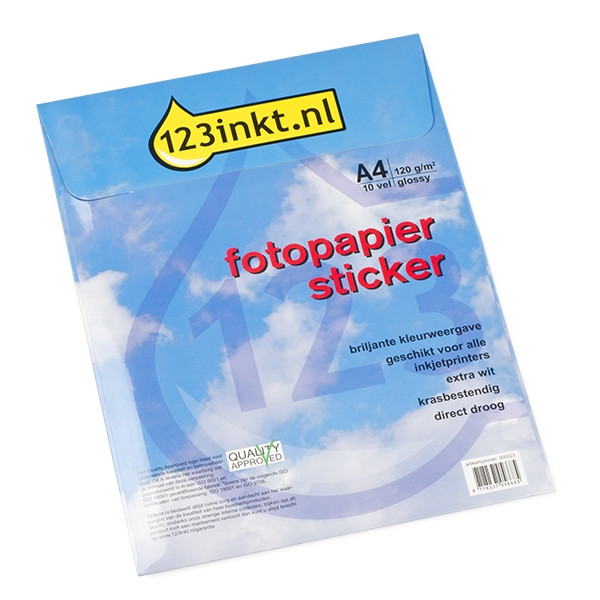
| 123ink white A4 glossy photo sticker paper (10-pack) | ||
|
|
||
| Order now, we can ship this on Monday! | ||
|
|
In stock
|
|
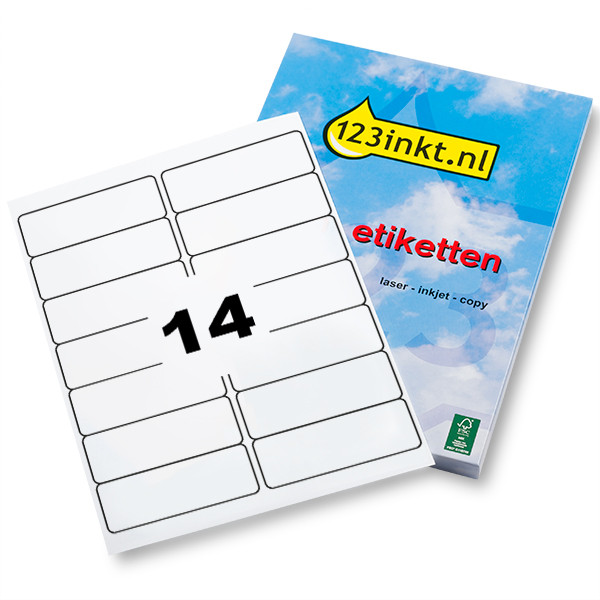
| Multi-purpose labels (99.1 x 38.1mm) | 123ink | 350 labels | ||
|
|
||
| Order now, we can ship this on Monday! | ||
|
|
In stock
|
|
| Multi-purpose labels (52.5 x 29.7mm) | 123ink | 1,000 labels | ||
|
|
||
| Order now, we can ship this on Monday! | ||
|
|
In stock
|
|