- Over 450,000 clients!
- Nationwide delivery from €4.99 (max €6.99)
Payment options
Follow us on social media


We're award-winning!


This site is protected by reCAPTCHA and the Google
Privacy Policy and
Terms of Service apply.
Cartridge not recognised
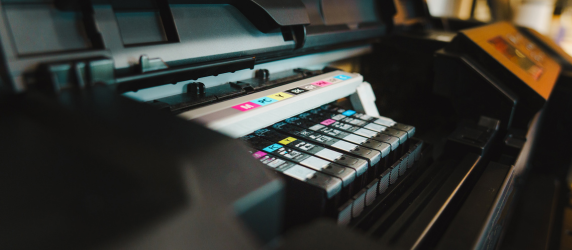
Your brand new cartridge has just arrived. But as soon as you insert it into the printer, the cartridge is not recognised! Don’t panic: we have seven handy solutions for you. Try them out step by step, and you will be printing documents again in no time.
Cartridge not recognised? Here’s a quick checklist!
- The protective tape or sticker is completely removed (with no residue left behind)
- This is the correct cartridge for your specific printer model
- The cartridge is placed in the correct slot and clicked securely into place (clear click)
- The printer is fully restarted (turn off, unplug, turn back on)
- Check contact points/chip: are they clean, dry and undamaged?
1. Ignore the warning about store brand cartridges
Are you installing a store-brand cartridge and receiving a warning about its use? You can ignore this message and simply use the cartridge. Printer manufacturers prefer that you use their original cartridges and hope you will purchase a more expensive cartridge by displaying a warning. Fortunately, this is not necessary. You can press ‘OK’ or ‘Continue’ and start printing instead!2. Ensure the cartridge is correct
It is possible that you have purchased or received the wrong cartridge. Cartridges that are not compatible with your printer will not be recognised. Check carefully if the cartridge number is correct. You can do this on our website:- Go to our ink cartridges page and select your printer’s brand.
- Click on ‘Search by printer model’.
- Search by your printer’s number or a keyword and click on your printer.
- You will now see a complete list of suitable cartridges for this printer.
- If the cartridge number does not match the cartridge that your printer won’t recognise, you have the wrong cartridge!
- Replace this cartridge with the correct one.
3. Restart the printer
In some cases, restarting your printer can help. Turn off the printer for at least 30 minutes by unplugging it from the power outlet. Then turn the printer back on and check if it recognises the cartridge now.4. Check if the protective material has been removed
Cartridges fresh out of the packaging often have a protective piece of tape or a protective sticker. This is the protective material. Always remove this before inserting the cartridge into the printer. If the material is not removed, the printer will not recognise the ink cartridge.5. Check if the cartridge is in the correct place
The printer has a specific slot for each ink colour (black, cyan, magenta and yellow). Check if you have placed the cartridge in the correct spot. Black should be placed in the black cartridge slot, cyan should be placed in the cyan cartridge slot, and so on. Another tactic that works is to remove all cartridges and reinsert them into the printer.6. Check other (empty) cartridges
- Turn off the printer and computer.
- Remove all cartridges from the printer.
- Disconnect the USB and power cables.
- Wait a few seconds and reinsert the ink cartridges into the correct places in the printer.
- Restart the printer and computer and connect the cables.
- The printer should now recognise all cartridges.
Other empty cartridges can also cause problems. Therefore, carefully check whether there is still enough ink in the remaining cartridges. Is one of your other cartridges empty? Then replace it with a new one! You can then recycle your empty cartridges via our cartridge recycling programme, if applicable. If you have received a recycling bag with your order, you can send your empty cartridge back to us free of charge!
7. Check the contact points of the cartridge
Cartridges often have a print head with copper contact points or a chip. It is possible that these contact points or the chip have become dirty. As a result, the cartridge cannot make contact with the printer. Check if there is dirt on the contact points and remove it if necessary:- Grasp the cartridge by the print head or the chip.
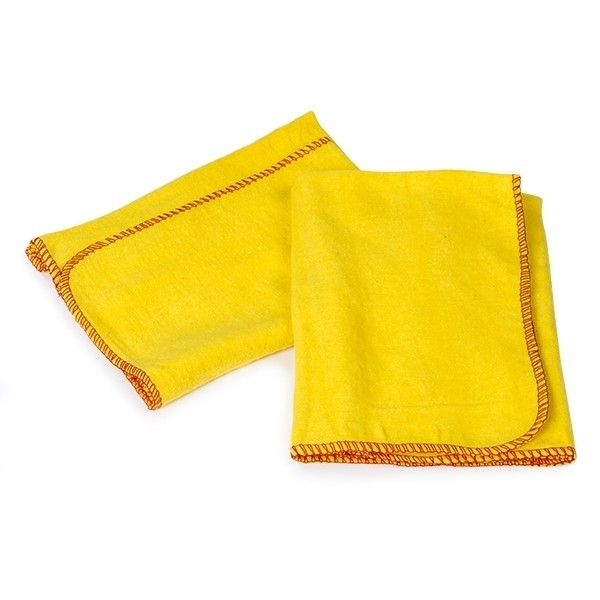
- Gently clean the contact points or the chip with a clean, dry cleaning cloth.
- Insert the cartridge into the printer and check if they are making contact now.
Please note: We are not responsible for any damage caused during cleaning.
Common Questions
Why doesn’t my printer recognise the cartridge?
When your printer does not recognise a cartridge, there can be several causes. Try these tips to get back to printing quickly.
- Ignore the warning about store-brand cartridges.
- Check that you have the correct cartridge.
- Restart the printer.
- Check if the protective material has been removed.
- Check if the cartridge is in the correct place.
- Check if the other cartridges are still full and that they are also in the correct place.
- Check if there is dirt on the contact points of the cartridge.
How do I reset the cartridge error?
Unplug the printer from the power outlet and leave it completely unplugged for up to 5 minutes. This often resets the error message. After that:
- Turn the printer back on and check if the cartridge is recognised now.
- If that doesn’t help, remove all cartridges and place them back in the correct spot (until you hear a click) and immediately check that there is no protective tape/sticker left on them.
How can I repair dried-out ink cartridges?
Remove the cartridge from the printer and dab the print head on a lint-free cloth with lukewarm water (or cleaning fluid) for 5-10 minutes until you see ink again. Dry thoroughly, put it back in, and then run your printer’s cleaning program. If this does not work the cartridge is often too dried out and a replacement is the best option.
If the above tips have not worked, please contact us and we can advise some other possible solutions.
| Cotton duster 40cm x 40cm | 2-pack | ||
|
|
||
| Order now, we can ship this today! | ||
|
|
In stock
|
|