- Over 450,000 clients!
- Nationwide delivery from €4.99 (max €6.99)
Payment options
Follow us on social media


We're award-winning!


This site is protected by reCAPTCHA and the Google
Privacy Policy and
Terms of Service apply.
Epson printer errors
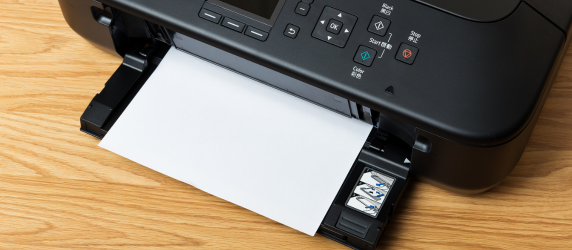
If an error message appears on your Epson printer screen, you may not be able to continue printing. While this is extremely annoying, it’s also useful because the Epson error code provides an indication of what could be wrong. In this blog, we explain how to fix some of the most common error codes and provide as comprehensive an overview of Epson error messages as possible. If you still can’t find a solution, you may need to reset your Epson printer. Read below to find the right solution for your Epson printer.
Common Epson error codes
What does an Epson E-01 error message mean?
The printer is malfunctioning, possibly due to a paper jam. Turn off the printer immediately and check if any paper is jammed. Carefully remove any jammed paper from the printer before turning it back on. If you can’t find any visible signs of a paper jam, please contact customer service for further assistance.What does an Epson E-02 error message mean?
The printer is experiencing a malfunction while scanning. Turn off your Epson printer and wait a few minutes before turning it back on. If the problem persists, we recommend contacting customer service.What does an Epson W-01 error message mean?
Unfortunately, your printer, or an essential part of it, may have reached the end of its lifespan. This error message usually means that it’s time to replace your printer. At 123ink, you’ll find a range of inkjet printers available at low prices.Overview of Epson error messages
In the table below, you will see a range of error messages that Epson printers commonly indicate. Look up the error code your printer is displaying and try out the solution!| Code | Problem | Solution |
|---|---|---|
| I-01 W-05 |
There is a problem with the paper tray: you've run out of paper or have loaded too much paper. | Fill the paper tray with paper when it is empty. Make sure there is not too much paper in the tray. Then press the 'Start' button to continue printing. |
| W-02 W-03 |
The paper is jammed in the printer. | Open the printer cover and locate the jammed paper. Using both hands, gently pull the paper straight out of the printer. Once the paper has been removed, restart the printer and try printing again. |
| W-04 | The cover over the ink cartridges is not closed properly. | Close the cover securely and press the ‘Start’ button to continue printing. |
| W-10 W-11 W-41 |
There is a problem with the cartridges: one (or more) are empty or incorrectly installed. The LCD screen shows which cartridge(s) are affected. | Replace any empty ink cartridges. Is the error message still showing? If so, one of the cartridges may not be installed correctly. Press the ‘Start’ button to access the cartridges, then gently push each cartridge into place until it clicks securely. Press the ‘Start’ button again to continue printing. |
| W-12 | The cartridges are not recognised. The LCD screen shows which cartridge(s) are affected. | If you are using compatible cartridges, you can usually ignore this message and click ‘Continue’ to carry on printing. If the printer still isn’t printing, the cartridges may be empty. Order new Epson ink cartridges to replace the ones causing the problem! |
| I-11 | No memory card has been detected or it is incorrectly inserted. | Insert a suitable memory card into the printer or ensure it is inserted correctly. |
| W-30 W-31 |
A memory card is installed incorrectly, or the memory card is not compatible with your Epson printer. The memory card may also contain files that your printer cannot read. | Remove the memory card and check if the files are compatible with the printer. If the problem persists, then try using a different memory card. |
| I-50 I-51 I-52 |
The document you are trying to scan is not correctly placed on the scanner glass, or another problem occurred during scanning. | Reposition the document on the scanner glass and use the markings to ensure it is positioned correctly. |
| W-01 | Your Epson printer (or an essential part) has unfortunately reached the end of its life. | Usually, this message means it is time to buy a new printer. You can also try contacting the Epson service centre for technical support. |
| E-02 | The printer is malfunctioning during scanning. | Turn off the printer, wait a few minutes and then turn it back on. Contact customer service if this does not resolve the issue. |
| E-01 | The printer is experiencing a malfunction, possibly due to a paper jam. | Turn off the printer immediately and check for any jammed paper. Carefully remove any paper you find before turning the printer back on. If you can’t see any jammed paper, please contact customer service for further assistance. |
| E-10 | The ink absorption pad has reached the end of its lifespan, collecting any excess ink produced during printing. | Turn off the printer and contact the Epson service centre. A repair technician can help you replace the ink absorption pad. |
| W-13 | The ink absorption pad is nearing the end of its lifespan. It collects any excess ink produced during printing. | You can continue printing for a short while by pressing the ‘Start’ button. However, we recommend contacting an Epson service centre to have the ink absorption pad replaced as soon as possible. |
Resetting your Epson printer
If the solutions outlined above do not work, or only work temporarily, it can sometimes help to reset the entire printer. Any software issues or other malfunctions may resolve themselves as a result.How to reset your Epson printer
Most Epson printers have a reset button at the back. Follow the steps below:- Turn off the printer using the On/Off button.
- Use a pin to press the reset button.
- Turn on the printer while holding down the reset button.
- Release the reset button as soon as a page comes out of the printer.
- Next, another page will come out of the printer containing an IP address.
- Use this IP address to reset the printer. Your printer should now be reset.
Is resetting your Epson printer not working? Check the printer manual to see if there is an alternative reset procedure, or contact our Customer Service team.
Where is the reset button on the Epson printer?
Most Epson printers don’t have a dedicated reset button. Instead, you can usually reset the printer through the on-screen menu by going to Settings → Maintenance → Restore Default Settings. However, some models may have a small reset button on the back of the printer.Haven’t found the right solution for your Epson error code? Or do you have further questions about a specific error message? Our specialists are here to help you get your Epson printer back up and running.
Other useful products
Common Questions
How do I reset my Epson printer?
To reset your Epson printer, first turn it off using the On/Off button. Use a pin to press and hold the reset button, then switch the printer back on while continuing to hold the button. Release the reset button as soon as a page comes out of the printer. A second page will then print containing an IP address. Use this IP address to complete the reset process. Your Epson printer should now be reset and ready to use again. Contact the team at 123ink.ie if you need any further assistance.
Why is my Epson printer displaying errors?
Epson printer errors may be due to several issues, including empty ink cartridges and paper jams. To troubleshoot, check your printer’s display for the specific error code and refer to our overview of Epson errors. Many errors can be resolved easily and you can continue printing in no time! Take a look at the error code guide on 123ink.ie now!
Where can I get new ink cartridges for my Epson printer?
You should get Epson ink cartridges at 123ink! We have the best prices for both original Epson and 123ink version ink cartridges, but you’ll lower your cost per print significantly if you choose 123ink version cartridges instead. Purchase them at 123ink.ie today!