What is print history and what is it used for?
Print history, as the name suggests, is a record of the printing activity carried out by your printer over a certain period.
Every document sent to the printer from a device is recorded, allowing you to see when and where it was printed. Depending on your printer or operating system, the history may also show cancelled print jobs and jobs that are currently in progress.
Print history can be useful if a document you sent to print isn’t in the output tray, as you can check whether the print job was processed. It can also help you find out whether someone has used your printer without your permission.
How do I view my print history?
There are several ways to check which documents you’ve printed over time. The method you need depends on the computer or operating system you’re using.
Below, we’ll explain how to view your print history.
View print history from Windows
If you’re using a Windows device, follow these steps to view your printer’s print history:
- Click the Start button and select Settings.
- Go to Devices → Printers & scanners.
- Select the printer you want to check and open the print queue. Here, you can view a list of documents that are currently waiting to be printed or have recently been sent to the printer.
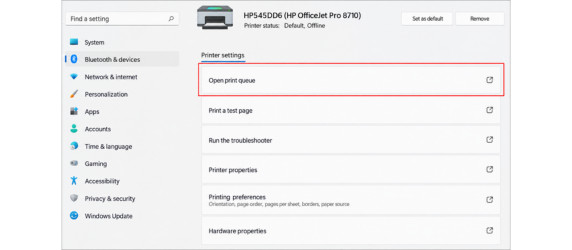
As you can see, accessing your printer’s print queue is straightforward. It can help you keep track of your print jobs and manage documents waiting to be printed.
If you’re using Windows 11, the process is just as simple, although the navigation is slightly different. Click the Start button and go to Bluetooth & devices → Printers & scanners. Select the printer you want to check and open the print queue, as described above.
View print history from Mac
If you’re using an Apple device and want to view your print history, follow these steps:
- Click the System Settings icon in the Dock at the bottom of the screen.
- Select Printers & Scanners.
- Choose the printer you want to check and click Open Print Queue. Here, you can see the files that are currently waiting to be printed.
- To view documents that have already been printed, open the Window menu at the top of the screen and select Show Completed Jobs.
Checking your print history from an Apple computer is just as easy as from a Windows computer.
How do I delete my print history?
Protecting the privacy and security of your documents and devices involves more than simply keeping your computer and files clean. Clearing your print history can help remove unnecessary data and, depending on your system, may also free up some storage space.
On
Windows and Mac, the steps for clearing your print history vary depending on your operating system. You may be able to manage or delete print jobs through your printer settings,
Control Panel, System Settings or
System Preferences.
On Windows, for example, you can open
Devices and Printers, select your printer and choose
Cancel all documents to remove all print jobs currently in the queue.
Clearing your print history can be useful if you want to keep your printing activity private, particularly when you share a computer or printer with other people.
Privacy and security when using print history
If you’re concerned about the privacy of your printing activity, you may be able to disable print history or prevent completed print jobs from being stored. The options available depend on your printer model and operating system.
Check your printer’s
Properties or settings menu to see whether you can change how print jobs are stored or managed.
Problems deleting print history
Problems with viewing or deleting your printer’s history are relatively uncommon. If you’ve followed all the steps above and are still having trouble, please contact us directly for further assistance.
Managing your print history effectively can help protect the privacy and security of your documents and printing activity. If no print history appears when you select the relevant option, print history may already be disabled on your device or printer.
Other useful products
Common Questions
How do I view and clear my print history?
Viewing and clearing your printer’s print queue is straightforward. Simply follow these steps:
- Go to Devices → Printers & scanners.
- Select your printer and open the print queue. Here, you can view the print jobs currently in the queue and cancel them if needed.
How do I delete my print history?
To delete the print history, simply access your printer settings from your computer and from the Print Queue section, you can view, pause, and delete all the content.